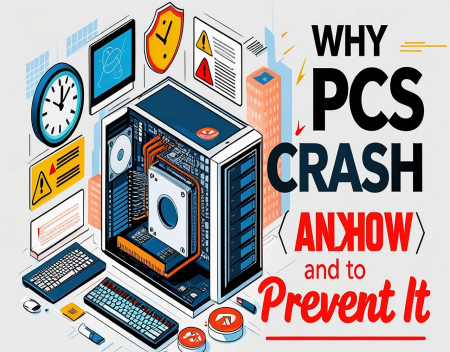
Few things are more frustrating than having your computer suddenly freeze, restart, or display the dreaded Blue Screen of Death (BSOD). Whether you're working on an important document, editing a video, playing a game, or simply browsing the internet, an unexpected crash can lead to lost work, wasted time, and plenty of frustration. While PC crashes may seem random, they almost always have an underlying cause. Understanding why computers crash—and taking a few preventative measures—can greatly improve your system's stability and reliability.
A PC crash occurs when the operating system or a critical program encounters an error that it cannot recover from safely. Instead of continuing to run and risking data corruption, the system stops, restarts, or displays an error message. Crashes can range from occasional annoyances to signs of serious hardware failure, so it's important to identify the root cause.
One of the most common reasons for crashes is outdated or faulty drivers. Drivers act as translators between your operating system and your hardware components, including your graphics card, printer, sound card, network adapter, and storage devices. If a driver becomes corrupted or is incompatible with a recent Windows update, it can cause instability, random restarts, or system crashes.
Keeping your drivers updated—especially for graphics cards and motherboard chipsets—can prevent many of these issues. It's generally best to download drivers directly from the hardware manufacturer's website rather than relying on unofficial sources.
Overheating is another major cause of PC crashes. Every component inside your computer generates heat, and if that heat isn't properly removed, performance and stability suffer. Modern processors and graphics cards include safety mechanisms that throttle performance or shut down the system entirely if temperatures become too high.
Dust buildup is one of the biggest contributors to overheating. Over time, dust can clog fans, block airflow, and coat heat sinks, preventing them from cooling components effectively. Cleaning your computer every few months with compressed air and ensuring adequate ventilation can significantly reduce the risk of overheating.
Faulty memory, or RAM, can also cause seemingly random crashes. Because RAM temporarily stores data that your processor is actively using, even a small hardware defect can produce application crashes, corrupted files, or blue screen errors.
Fortunately, Windows includes built-in memory diagnostic tools, and more advanced utilities such as MemTest86 can thoroughly test your memory for faults. If defective RAM is identified, replacing the faulty module usually resolves the issue.
Storage problems are another common culprit. Traditional hard drives wear out over time, and even solid-state drives have a finite lifespan. Bad sectors, corrupted file systems, or failing storage devices can prevent Windows from reading important system files, leading to crashes or startup failures.
Most SSDs and hard drives include Self-Monitoring, Analysis and Reporting Technology (SMART), which can warn of impending hardware failure. Regularly checking drive health and replacing aging storage devices before they fail can prevent data loss and unexpected downtime.
Software conflicts frequently contribute to instability. Installing multiple antivirus programs, incompatible system utilities, outdated hardware monitoring software, or poorly designed applications can create conflicts that destabilize Windows. New software should always be downloaded from reputable sources, and unnecessary startup applications should be removed to reduce system complexity.
Malware is another significant cause of crashes. Viruses, ransomware, spyware, and other malicious software can modify system files, overload system resources, or interfere with normal Windows operations. Running reputable antivirus software and keeping it updated helps detect and remove many threats before they cause serious damage.
Operating system updates occasionally introduce compatibility problems, particularly when older hardware or software is involved. Although Windows updates are essential for security, they may occasionally expose existing driver issues or software incompatibilities. Fortunately, Microsoft usually releases follow-up updates that address widespread problems.
If your PC begins crashing immediately after a major update, checking for newer drivers or uninstalling recently installed software may resolve the issue.
Power supply problems are often overlooked but can be surprisingly common. An aging or low-quality power supply may struggle to deliver stable voltage to your components, causing unexpected shutdowns, restarts, or hardware errors. This is especially true for gaming PCs or workstations with powerful graphics cards that demand substantial electrical power.
Using a quality power supply from a reputable manufacturer can significantly improve system stability while protecting expensive components from electrical fluctuations.
Electrical issues outside the computer can also contribute to crashes. Power surges, brownouts, and brief outages may interrupt system operation or even damage hardware. Using a quality surge protector or an Uninterruptible Power Supply (UPS) provides valuable protection against unstable electrical conditions while allowing you to safely save your work during power failures.
Overclocking is another potential source of instability. Increasing processor or graphics card speeds beyond manufacturer specifications can improve performance, but it also increases heat generation and reduces stability if not carefully configured. Unless you thoroughly understand overclocking and stress testing, it's generally safest to operate hardware at its factory settings.
Insufficient system resources can also cause applications to become unstable. Running dozens of browser tabs, multiple demanding applications, virtual machines, and large creative projects simultaneously may exhaust available memory, forcing Windows to rely heavily on virtual memory stored on the SSD or hard drive. This doesn't always cause a system crash, but it can dramatically reduce performance and occasionally trigger application failures.
Regular maintenance goes a long way toward preventing crashes. Keeping Windows updated, uninstalling software you no longer use, cleaning temporary files, checking for malware, monitoring storage health, and ensuring adequate free disk space all contribute to a more stable system.
Backing up your data is equally important. Even the most reliable computer can experience unexpected hardware failure. Maintaining regular backups ensures that important documents, family photos, financial records, and business files remain safe regardless of what happens to your computer.
Modern diagnostic tools make troubleshooting much easier than it once was. Windows Event Viewer, Reliability Monitor, Device Manager, and built-in troubleshooters can often provide valuable clues about the cause of recurring crashes. Many hardware manufacturers also provide utilities that monitor temperatures, drive health, and system performance.
Artificial intelligence is beginning to improve PC reliability as well. AI-powered diagnostic software can identify unusual hardware behaviour, predict component failures, optimize system performance, and even recommend preventative maintenance before serious problems develop. As these technologies mature, computers may increasingly detect and resolve many issues automatically.
If your PC crashes only occasionally, the cause may be something simple such as an outdated driver or a software conflict. However, frequent crashes, repeated blue screens, unusual noises from storage devices, or persistent startup problems may indicate failing hardware that should be addressed promptly before complete failure occurs.
The good news is that most PC crashes are preventable. Keeping your operating system and drivers up to date, maintaining proper cooling, protecting against malware, using reliable hardware, avoiding unnecessary software, and performing regular backups will dramatically reduce the likelihood of serious problems.
While no computer is completely immune to occasional errors, a well-maintained PC can operate reliably for many years. A little preventative maintenance today can save countless hours of troubleshooting tomorrow, helping ensure your computer remains a dependable tool for work, entertainment, and everyday life.
Great experience with Computer Geek. They helped with my website needs and were professional, respon . . . [MORE].

Great, quick service when my laptop went into meltdown and also needed Windows 11 installed. Also ca . . . [MORE].
It was a great experience to working with you. thank you so much. . . . [MORE].
Thank you so much for great service and over all experience is good . highly recommended for all peo . . . [MORE].
We engaged The Computer Geeks in mid-2023 as they have a reputation for API integration within the T . . . [MORE].

How Streaming Changed Ent

Digital Minimalism in a C

Are We Becoming Too Depen