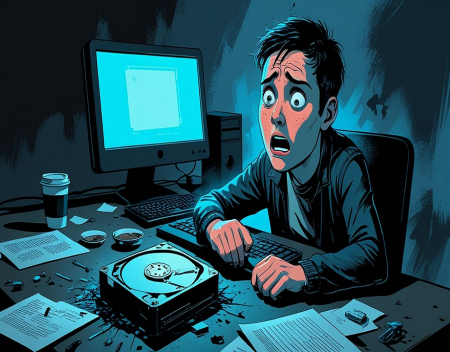
Few computer problems are as stressful as a failing hard drive. One moment your computer is working normally, and the next it's taking forever to load files, displaying mysterious error messages, or refusing to boot altogether. For many people, a hard drive failure isn't just an inconvenience—it can mean losing years of family photos, important work documents, financial records, and other irreplaceable files.
While storage technology has become more reliable over the years, no storage device lasts forever. Whether your computer uses a traditional Hard Disk Drive (HDD) or a newer Solid State Drive (SSD), failure is always a possibility. Understanding what happens during a drive failure and knowing how to respond can significantly improve your chances of protecting your data.
Traditional hard drives rely on spinning magnetic platters to store information. Inside the drive, tiny read/write heads move just above the surface of these platters to access data. Because they contain moving mechanical parts, hard drives experience wear over time. Bearings, motors, and read heads can eventually fail after years of continuous use.
Solid State Drives work differently. Instead of mechanical components, they store data on flash memory chips. SSDs are generally faster, quieter, and more resistant to physical shock than hard drives. However, they are not immune to failure. Flash memory cells have a finite number of write cycles, and electronic components such as controllers can also malfunction.
The first signs of a failing drive are often subtle. You may notice that your computer takes much longer to boot than usual. Programs may freeze unexpectedly, files may take an unusually long time to open, or Windows might become less responsive during everyday tasks.
Some users dismiss these symptoms as simply "an old computer getting slow," but declining storage performance is often an early warning that something more serious is developing.
With traditional hard drives, unusual noises can be an especially important warning sign. Clicking, grinding, buzzing, or repeated spinning sounds may indicate mechanical problems inside the drive. A repetitive clicking noise—sometimes called the "click of death"—often suggests that the read/write heads are struggling to access data.
If you hear unusual sounds coming from a hard drive, stop using the computer as soon as possible. Continuing to operate a mechanically failing drive may worsen the damage and reduce the chances of recovering your files.
Another common symptom is file corruption. Documents may refuse to open, photos may display strange artifacts, or videos may become unreadable. You might also encounter error messages indicating that certain files cannot be accessed or that the operating system needs to repair the drive.
Windows includes built-in tools that sometimes detect storage problems before complete failure occurs. Messages such as "Windows detected a hard disk problem" or repeated requests to scan and repair the drive should never be ignored.
Many storage devices also include Self-Monitoring, Analysis and Reporting Technology (SMART). This built-in monitoring system tracks various health indicators, including bad sectors, temperature, read errors, and overall drive condition. Many diagnostic programs can read SMART information and provide early warnings when a drive begins showing signs of deterioration.
Unfortunately, not every drive provides advance notice. Some storage devices fail suddenly with little or no warning.
When a drive finally fails, several different scenarios are possible. The computer may freeze during startup, become stuck in a continuous reboot loop, or display messages such as "No boot device found" or "Operating system not found." In other cases, the BIOS or UEFI firmware may fail to detect the drive entirely.
If the drive contains your Windows installation, the computer may no longer boot at all.
At this point, many people panic and immediately begin trying every repair tool they can find online. This can sometimes make matters worse.
If you suspect a physical hardware failure, avoid repeatedly restarting the computer or running repair utilities that perform extensive writing to the drive. Every additional operation may increase the risk of permanent data loss.
Instead, your first priority should be protecting whatever data remains accessible.
If the drive is still partially functional, immediately copy your most important files to another storage device. Family photos, tax documents, business records, and personal projects should always take priority. Large applications and games can usually be reinstalled later, but personal files are often impossible to replace.
If the drive has completely failed, professional data recovery may be an option.
Data recovery companies specialize in retrieving information from damaged storage devices. For mechanically failed hard drives, technicians may open the drive inside specialized clean-room environments to replace damaged components or read data directly from the platters. SSD recovery is often more complex because failures frequently involve damaged controllers or corrupted flash memory.
Professional recovery can be remarkably successful, but it is also expensive. Depending on the severity of the damage, recovery services may cost anywhere from several hundred to several thousand dollars. Even then, complete recovery cannot be guaranteed.
Fortunately, preventing disaster is much easier than recovering from one.
The single most important protection against drive failure is maintaining regular backups.
Experts often recommend the "3-2-1 backup rule." Keep at least three copies of your important data, store those copies on two different types of storage, and keep one backup off-site or in the cloud. This approach protects against hardware failures, theft, fire, ransomware, and accidental deletion.
External hard drives remain an affordable backup solution for most home users. Cloud storage services provide an additional layer of protection by automatically synchronizing important files to secure online servers. Many people use both methods for maximum protection.
Replacing aging drives before they fail is another smart strategy. While there is no exact lifespan for storage devices, drives that have been operating continuously for five to seven years deserve closer attention, especially if they begin showing warning signs.
Modern SSDs have made computer failures less common because they contain no moving parts. They are generally more resistant to physical shock and vibration than traditional hard drives, making them particularly valuable in laptops. However, SSDs can still fail unexpectedly due to electronic component failures or firmware problems, so backups remain just as important.
Businesses often use RAID storage systems to improve reliability. RAID allows multiple drives to work together so that if one drive fails, the system can continue operating while the failed drive is replaced. However, RAID is not a substitute for backups. Accidental deletion, ransomware, or multiple drive failures can still result in data loss.
Artificial intelligence is beginning to improve storage reliability as well. Some enterprise storage systems now use AI to analyze drive behaviour, predict failures before they occur, and recommend proactive replacement of aging hardware. As these technologies become more affordable, similar predictive features will likely appear in consumer computers.
The good news is that most drive failures don't happen without at least some warning. Slower performance, unusual noises, corrupted files, repeated disk errors, and SMART warnings often provide valuable clues that something is wrong. Paying attention to these signs allows you to back up your data before complete failure occurs.
Ultimately, hard drive failure isn't a question of if—it's a question of when. Every storage device has a limited lifespan. The key is being prepared before problems arise. By monitoring your drive's health, replacing aging hardware when necessary, and maintaining reliable backups, you can ensure that even if your storage device eventually fails, your most valuable information remains safe.
A failed hard drive may be inconvenient, but with proper planning, it doesn't have to become a disaster.
Great experience with Computer Geek. They helped with my website needs and were professional, respon . . . [MORE].

Great, quick service when my laptop went into meltdown and also needed Windows 11 installed. Also ca . . . [MORE].
It was a great experience to working with you. thank you so much. . . . [MORE].
Thank you so much for great service and over all experience is good . highly recommended for all peo . . . [MORE].
We engaged The Computer Geeks in mid-2023 as they have a reputation for API integration within the T . . . [MORE].
The Evolution of Personal

The Hidden Cost of Free A

The Psychology of Notific